The right access for every team.
Rolling AI out to a whole company is mostly a question of who gets what. Admins run the workspace, team owners run their teams, and everyone else gets the models, knowledge and prompts meant for them. Nothing is shared by accident, and every change leaves a record.
Who can join, what they can use, and what they can see.
Six controls cover the questions IT, team leads and the data protection officer ask before a company-wide rollout.
Invite people, set their role.
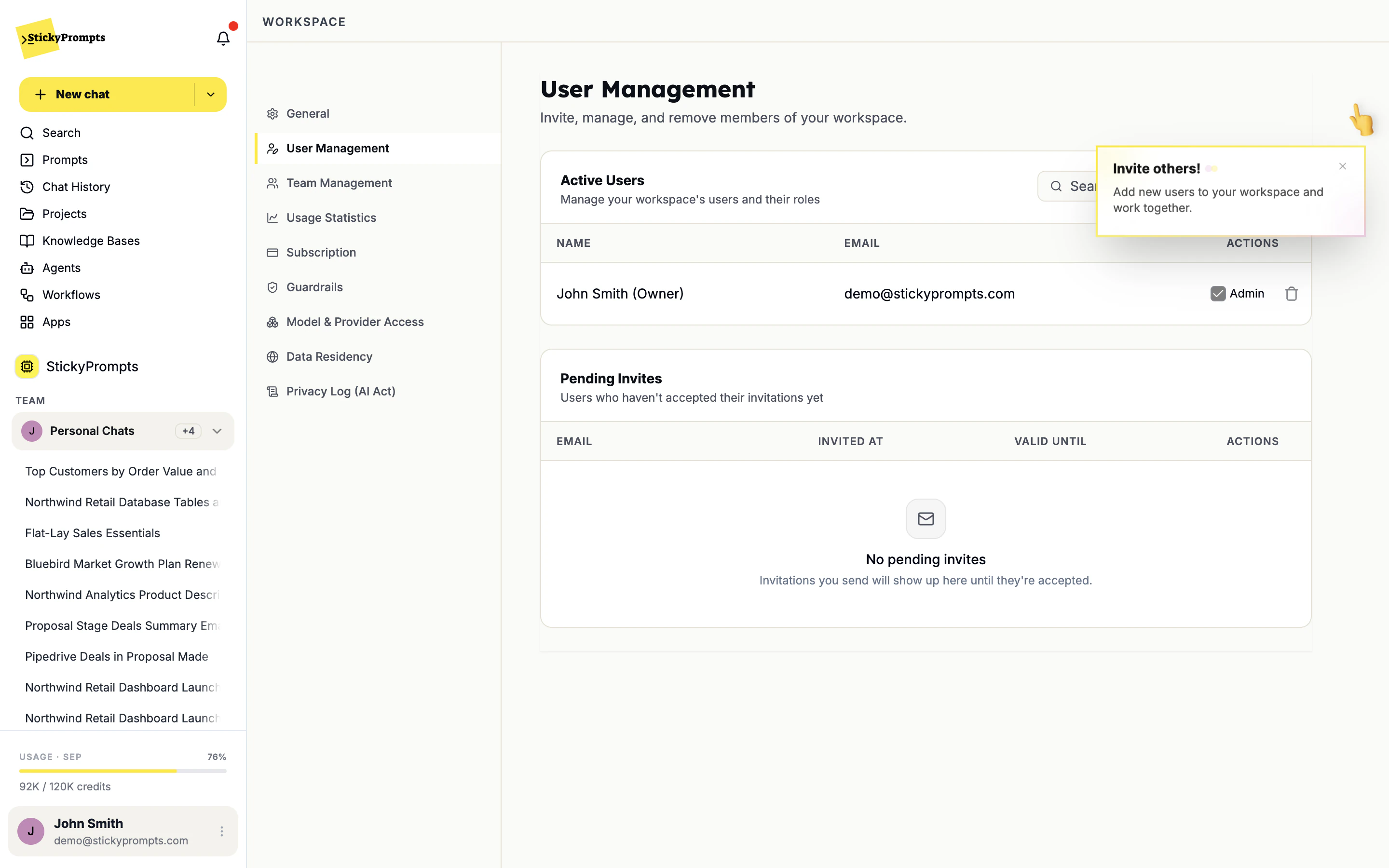
User Management lists everyone in the workspace with their role. Invite a colleague by email, tick Admin for the people who help run things, and remove anyone who leaves. Invitations that have not been accepted wait under Pending Invites, with the date they were sent and when they expire.
- One Owner, admins by a single tick
- Pending invites with sent and expiry dates
- Join by company domain, straight away or with approval
A team for each function, with an owner.
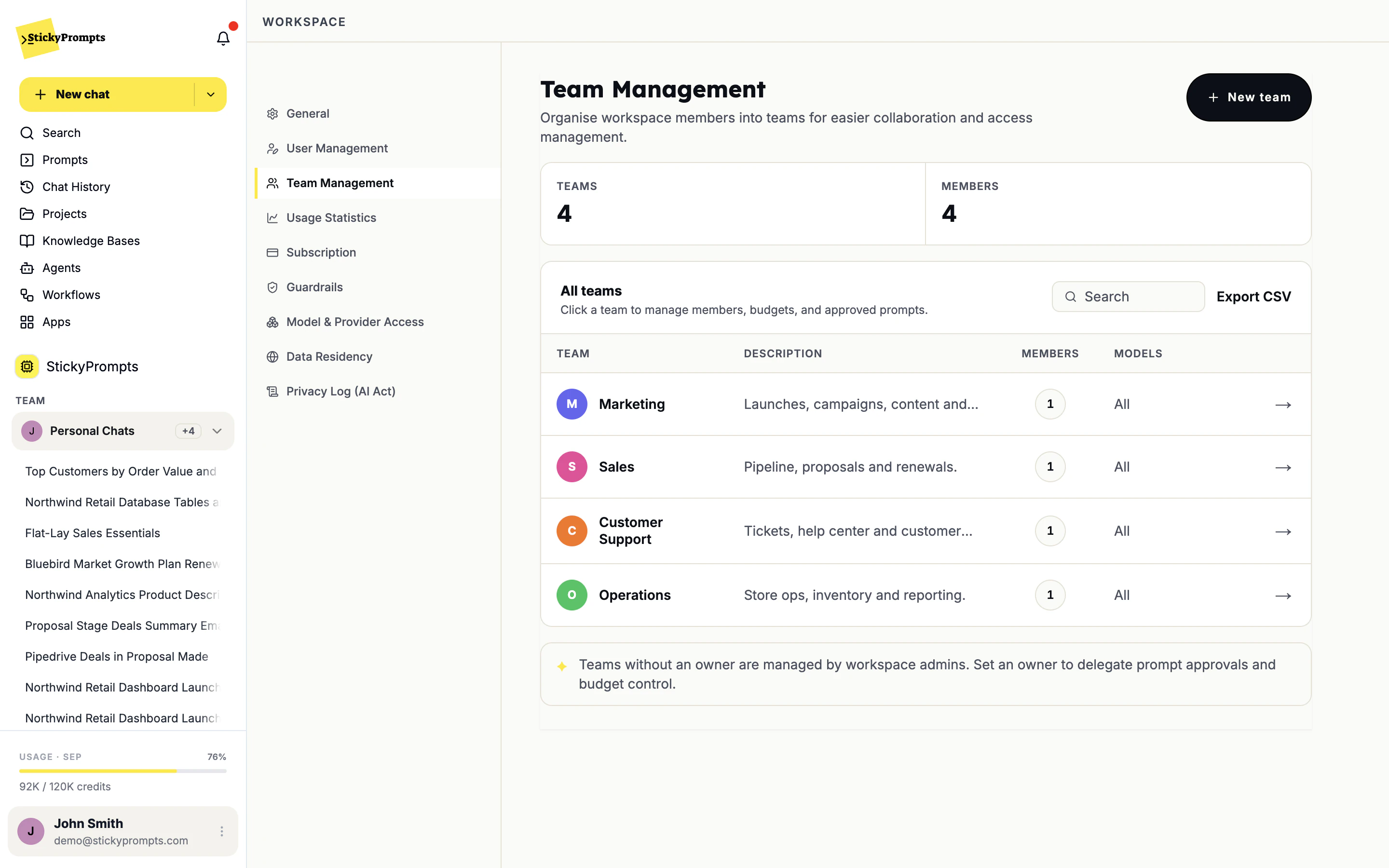
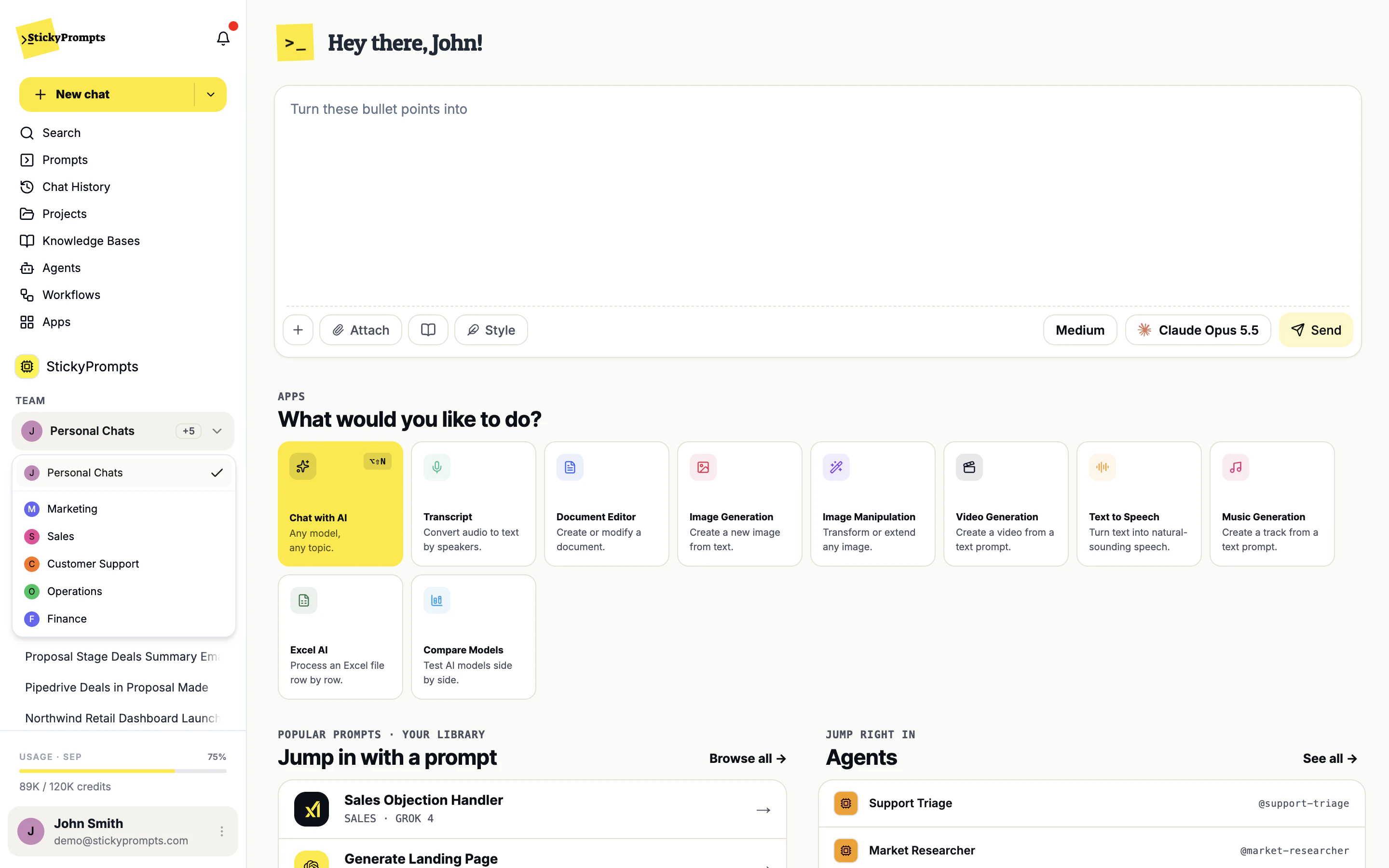
Group people into teams the way Northwind is organised: Marketing, Sales, Customer Support, Operations and Finance. Give a team an owner and they approve its prompts and manage its budget, without waiting on IT. Teams without an owner are managed by workspace admins.
- Members and model access per team
- Team owners for prompt approval and budget control
- A team switcher for people in more than one team
Allow, block, or specific teams.
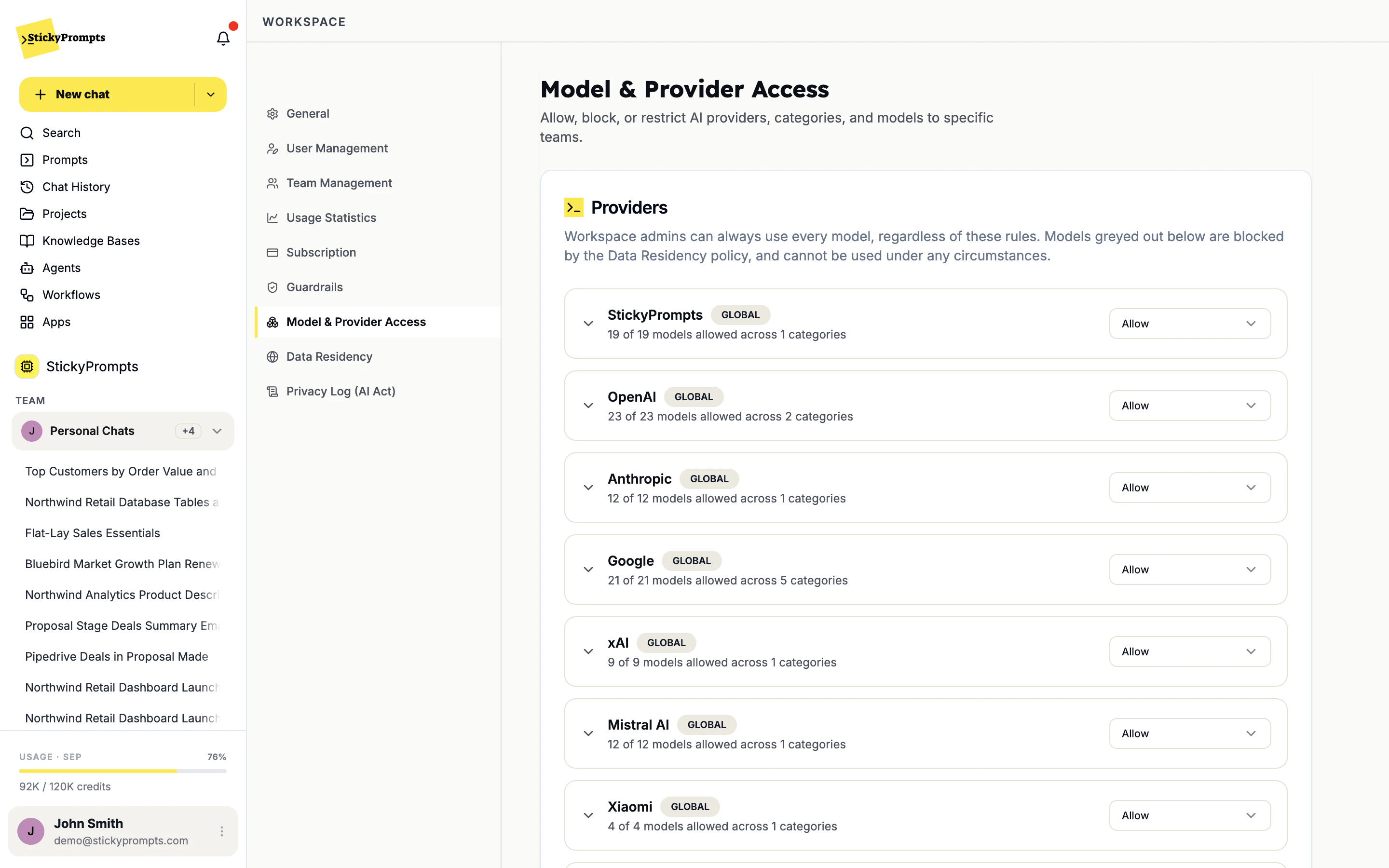
Set each provider to Allow, Block or Specific teams, and go down to categories and single models when you need to. Finance can try a new provider before anyone else does. Admins can always use every model, and anything your data residency policy rules out is greyed out for everyone.
- A rule per provider, category or model
- Admins keep access to every model for testing
- Residency-blocked models cannot be picked by anyone
Shared with the team, not the company.
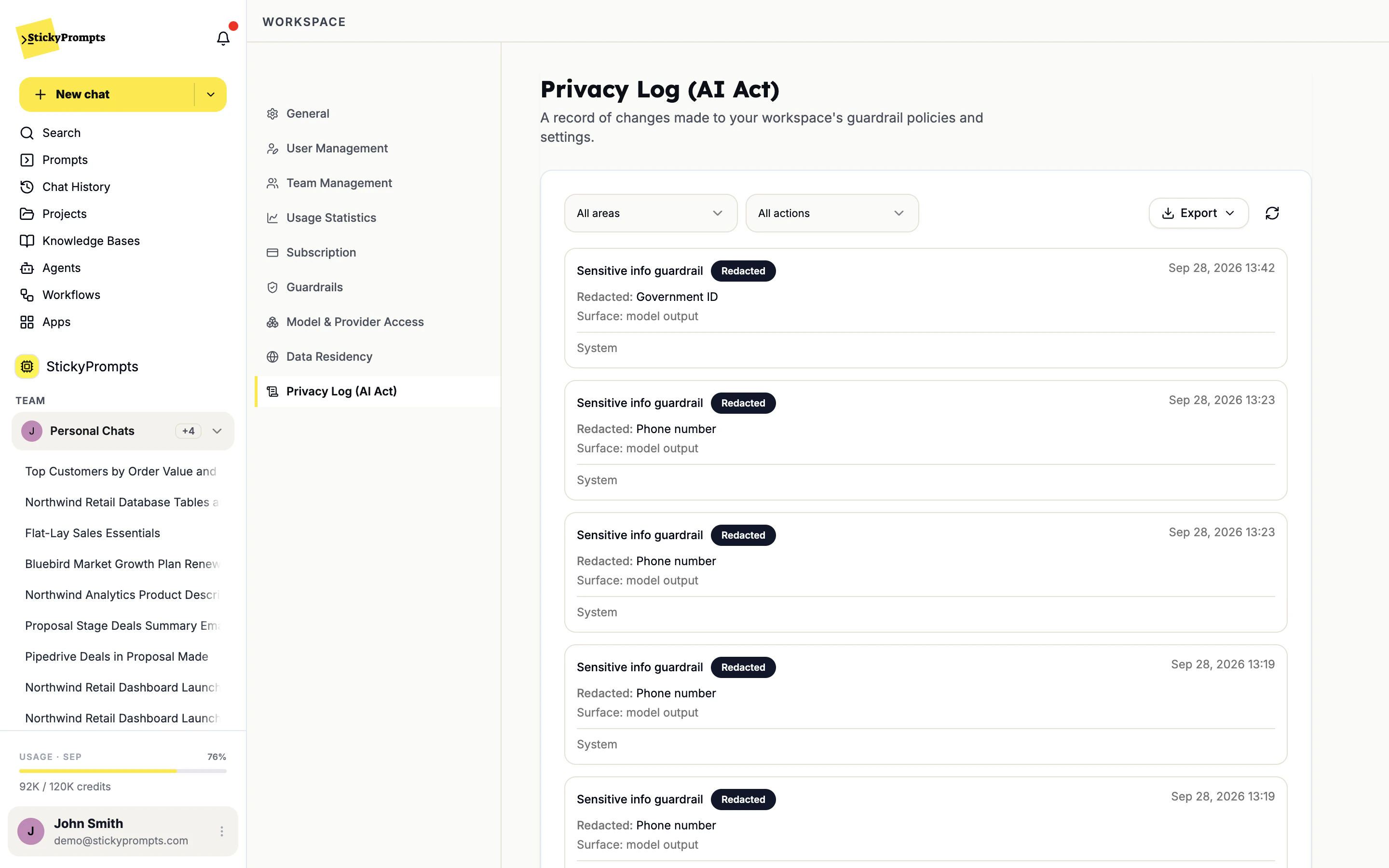
Knowledge bases have a Members tab, so the Northwind Help Center can belong to Customer Support and nobody else. Chats, projects and prompts work the same way: they start with the person who made them and are shared with a colleague, a team or the whole workspace on purpose.
- Members per knowledge base
- Share chats, projects and prompts with a person or a team
- Project shares can include managing its files and prompts
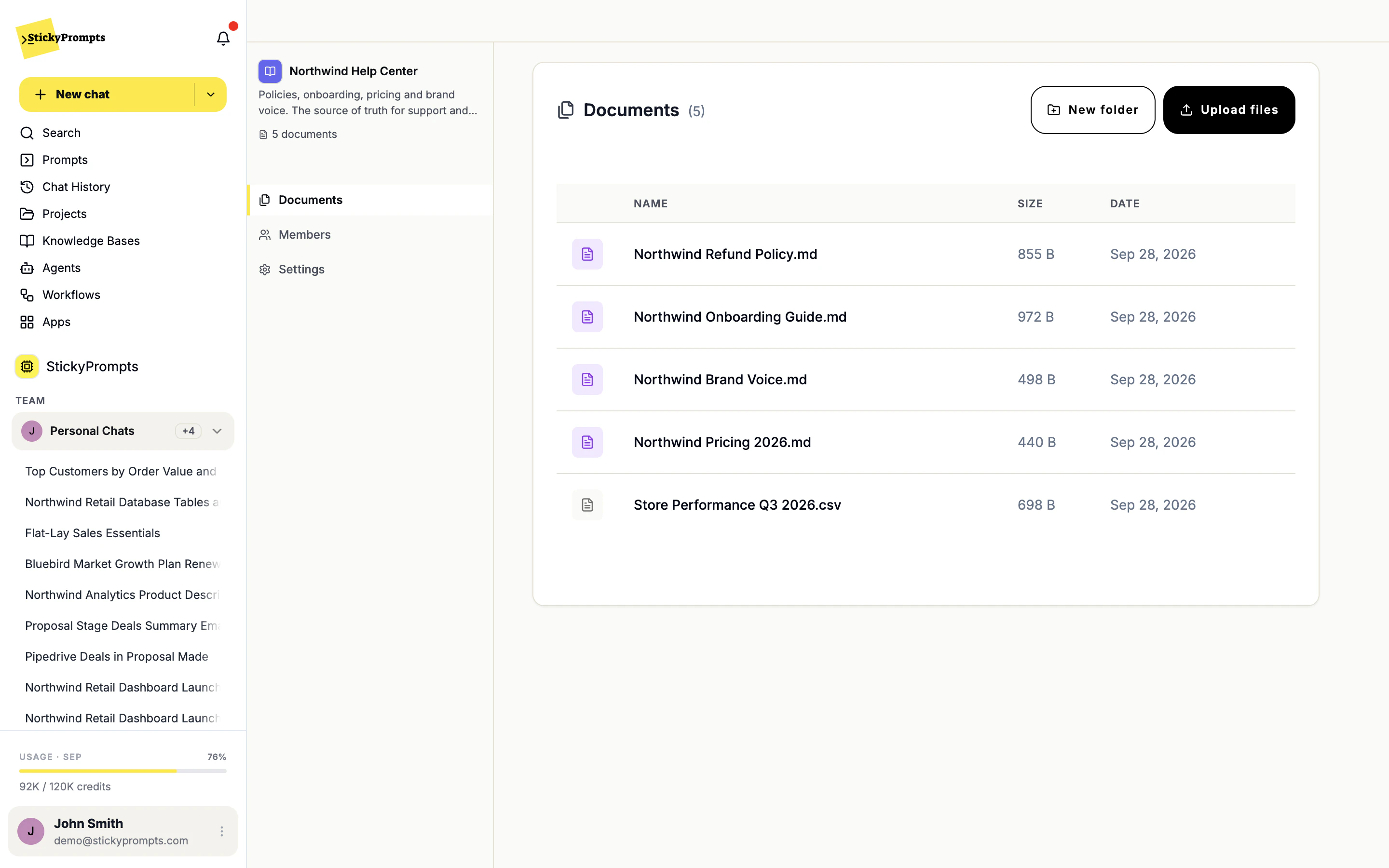
A key that can do one job.
Generate a key, give it a name and choose the permissions it needs. The nightly report script can read conversations without being able to delete anything. The full key is shown once, and it never sees more than the person who created it.
- Permissions chosen per key
- One key for the REST API and the MCP server
- Rename, re-scope or delete a key at any time
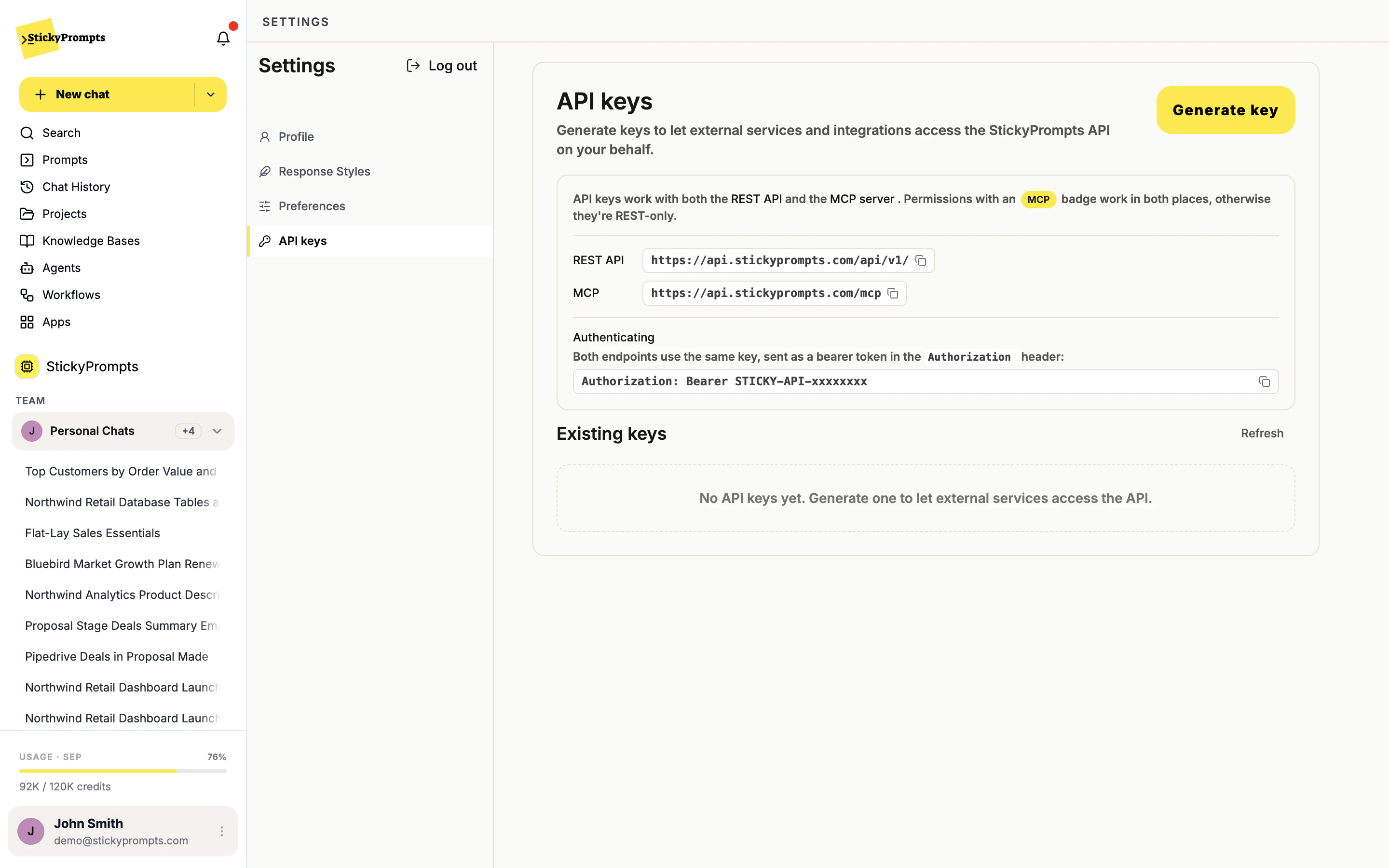
Every change on the record.
The Privacy Log records changes to guardrail policies and settings, and every time a guardrail warned, redacted or blocked something. Filter it by area and action, and export it when the data protection officer or an auditor asks what happened and when.
- Policy changes and guardrail triggers in one list
- Filter by area and action
- Export it for your own records
- Two admins in IT run the workspace, everyone else is a member
- Anyone with a Northwind email address can ask to join, and an admin approves
- Five teams: Marketing, Sales, Customer Support, Operations and Finance
- The Marketing lead owns the Marketing team, its prompts and its budget
- The Help Center knowledge base is shared with Customer Support only
- The reporting script has its own API key, limited to the permissions it uses
What admins ask about roles and permissions.
What is the difference between the Owner, an admin and a member?
Every workspace has one Owner, who always has admin rights. Admins run the workspace: they invite and remove people, create teams, name team owners, and set model access, guardrails and data residency. Members use the workspace - chats, prompts, projects, apps - within the rules the admins set.
What can a team owner do?
A team owner approves the team's prompts, keeps an eye on its budget, and can add or remove team members. Only a workspace admin can make someone a team owner or change a member's role. If a team has no owner, the workspace admins manage it.
How does joining by company domain work?
An admin sets the Workspace Domain, for example your company's email domain, and turns joining on. People who sign up with a matching address can then join the workspace, either immediately or after an admin approves the request. A domain can belong to one workspace only.
Can we keep a provider to one team?
Yes. In Model & Provider Access each provider is set to Allow, Block or Specific teams, and you can go down to categories and single models. Workspace admins can always use every model, so testing a new one does not mean opening it to everyone. Models ruled out by your data residency settings are greyed out and cannot be used by anyone.
What can an API key do?
Exactly what its permissions allow, and never more than the person who created it can see. You choose the permissions when you generate the key, the full key is shown once, and you can change its name and permissions later or delete it. One key works for both the REST API and the MCP server.
Where do we see what changed?
In the Privacy Log. It records changes to guardrail policies and settings, and every time a guardrail warned, redacted or blocked something. You can filter it by area and action and export it, which gives you a record to show when someone asks.
Invite the first team and set who sees what.
Start free with a $5 trial balance. Create your teams, set model access, and invite people when the rules are in place.