Write the prompt once. Run it on every row.
Northwind has 2,000 product descriptions to rewrite, a week of support tickets to classify and a lead list nobody has tagged. Each is the same small job repeated down a spreadsheet. Excel AI does the repeating: one prompt, your columns, a new column filled in.
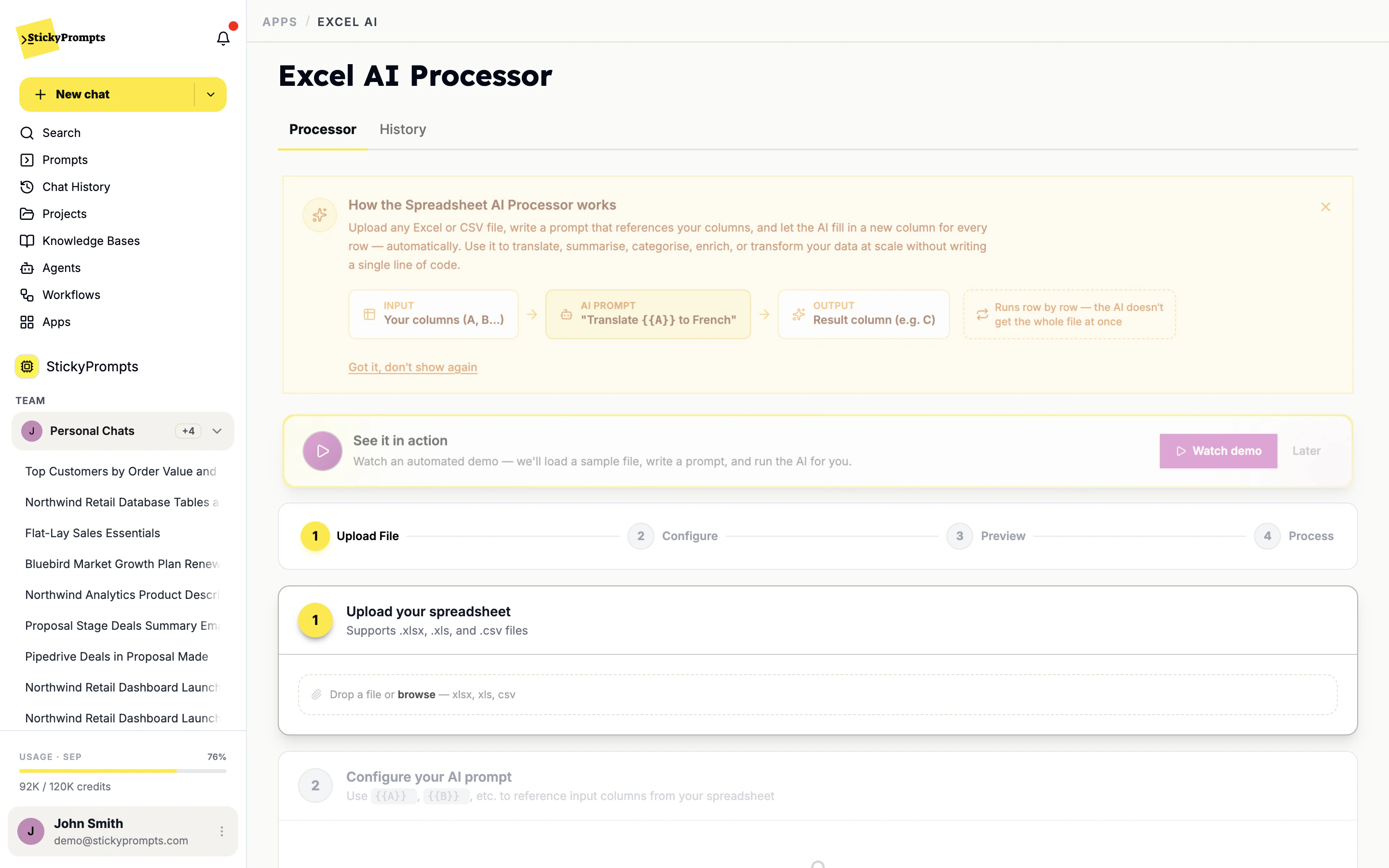
Four steps, and one of them is checking.
The same four steps sit across the top of the app. The third is the one that matters: you see the answer for a real row before a single credit goes on the rest.
Your columns in. A new column out.
Reference a column by its letter and every row fills in its own values. Label them in the prompt, the way you would brief a colleague, and the model knows what each one means.
Write a product description for {{B}}. Use the supplier notes: {{C}}. Two sentences, Northwind house style, no superlatives.
| A sku | B product | C supplier notes | D description | |
|---|---|---|---|---|
| 2 | NW-1042 | Merino crew sweater | 100% merino, 12 colours, machine washable 30C | A soft merino crew in twelve colours that goes in the wash at 30 degrees. Warm enough for October, light enough to wear under a coat. |
| 3 | NW-1043 | Canvas weekender bag | waxed canvas, leather handles, 45L, fits cabin size | A 45-litre waxed canvas bag with leather handles that fits in an overhead locker. Built for two nights away and plenty more after that. |
| 4 | NW-1044 | Stoneware mug set | set of 4, 350ml, dishwasher safe, reactive glaze | Four 350ml stoneware mugs with a reactive glaze, so no two look quite the same. Dishwasher safe, which matters more than it sounds. |
| ... | and so on, to the last row of the file | |||
Point at the columns. Skip the formulas.
If you can write the instruction in a sentence, you can run it on a spreadsheet. {{A}} becomes the value in column A for that row, {{B}} the value in B, and the answer lands in the output column you choose.
- Works with .xlsx, .xls and .csv files
- Columns referenced as {{A}}, {{B}} and so on
- Your choice of model and output column
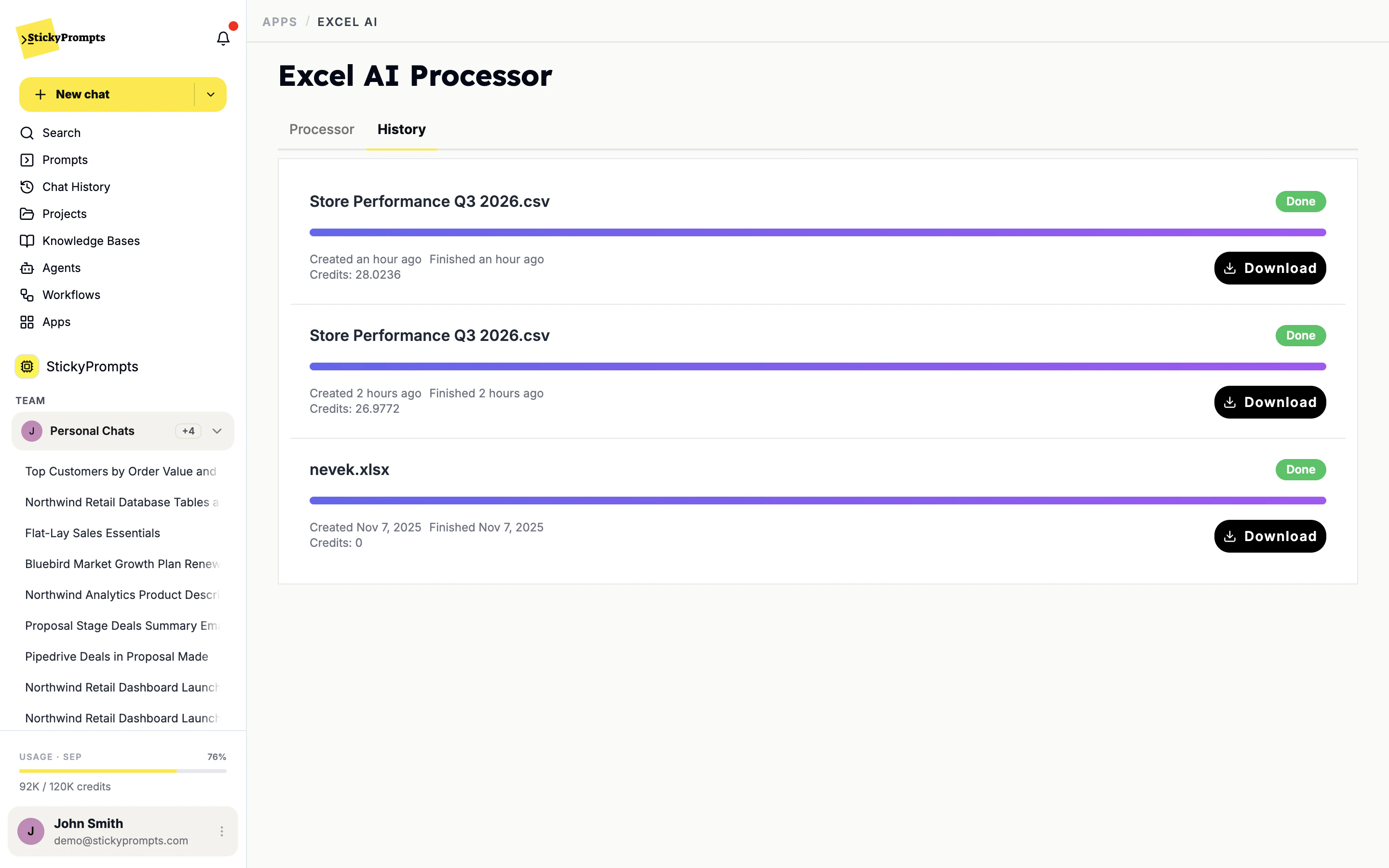
Every file you ran, ready to download.
The History tab keeps each processed file with its status, when it started and finished, and the credits it used. Download the result again next week, or send it on to the person who asked for it.
- Status and timing for every run
- Credits recorded per file
- Download the finished spreadsheet any time
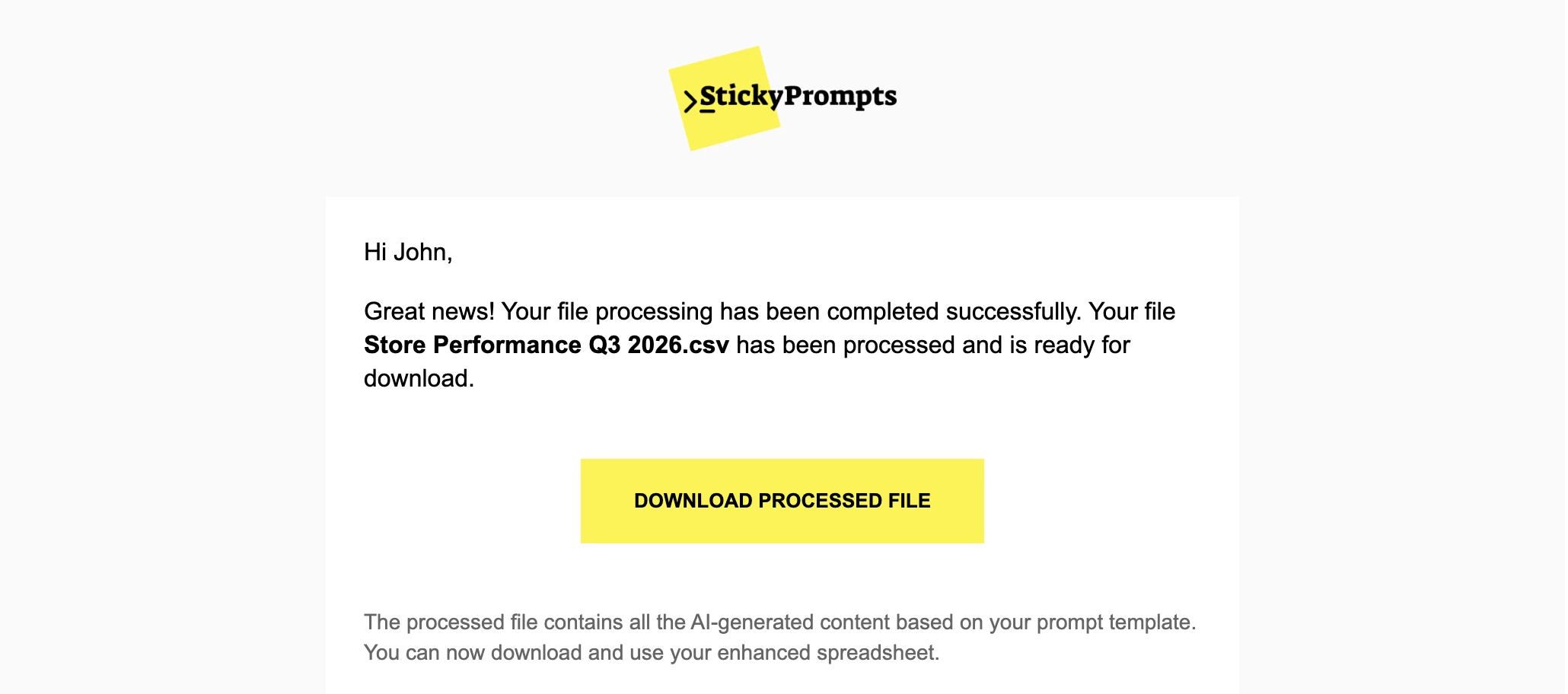
Close the tab. We'll email you.
A big file does not need you watching a progress bar. When processing is done, StickyPrompts sends you an email naming the file, with a button that downloads the processed spreadsheet.
- An email the moment the file is ready
- One button to download the result
- The same file is waiting in History
- 2,000 product descriptions, rewritten in the house style
- A week of support tickets, classified by topic and urgency
- Inbound leads, tagged by industry and fit
- A catalogue translated into French and German, row by row
- Survey comments, summarised into one line each
- One action per store, written from the weekly figures
What teams ask about Excel AI.
Which files can I upload?
Excel files (.xlsx and .xls) and CSV. One header row and one record per row gives the most reliable results, so it is worth a minute of tidying before you upload.
Does the AI read the whole spreadsheet at once?
No. It works row by row: for each line, your {{A}} and {{B}} references are replaced with that row's values and the model answers that one prompt. Every answer is about its own row, which is what keeps a long file consistent from the first line to the last.
Which model does the work?
The one you choose in Configure. A short classification might go to a fast model; a product description in your house style might go to a flagship. Pick the best model for the job, and use Preview to check it before you commit the file.
Can it overwrite my data?
The answers go into the output column you pick. Choose an empty one and your original columns come back exactly as they went in, with the new column alongside.
Do I have to keep the page open?
No. Processing carries on without you. When it finishes, you get an email with a download button, and the file stays in the History tab with its status and the credits it used.
Can we start a run from our own systems?
Yes. Spreadsheet processing is available through the StickyPrompts API and MCP server, so a script or an agent can start a run and check on it. See the developer docs for the details.
Upload one spreadsheet and preview a row.
Start free with a $5 trial balance. Get the first row right, then run the rest.