Ask up to five models. Read them side by side.
Model descriptions only tell you so much. The quickest way to find the best model for a piece of work is to give several the same real prompt and read what comes back - with the time and the credits for each answer right above it.
Evidence for a choice you would otherwise guess.
Everything on the screen is there to help one decision: which model should do this job from now on.
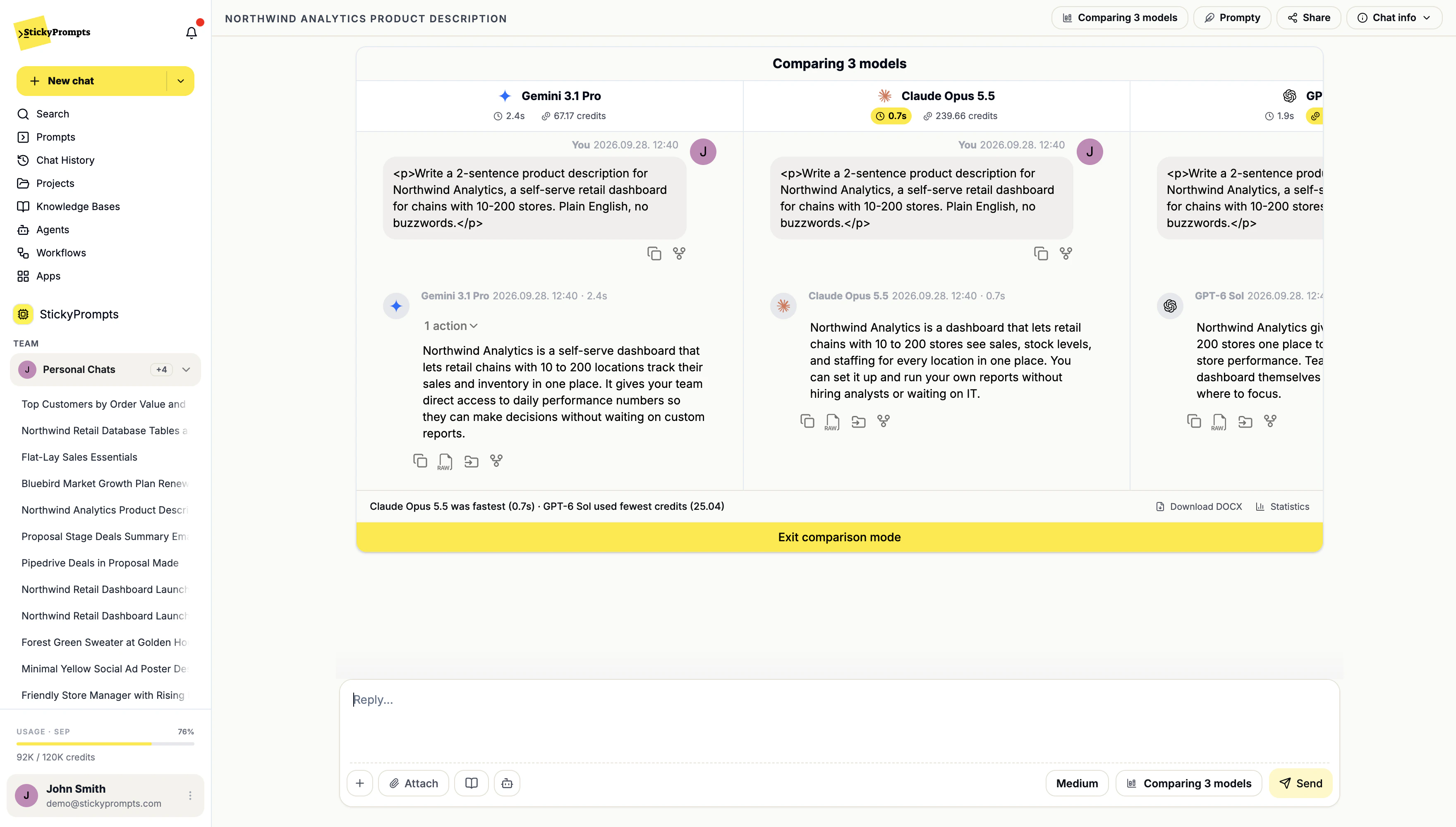
Same question, three answers, one screen.
Northwind needed a two-sentence description for its new retail dashboard. Three models from three different makers got the same brief, word for word. Each column shows who answered, how long it took and what it used, and the summary names the fastest model and the one with the fewest credits.
- Response time and credits at the top of every column
- The fastest model highlighted
- Download DOCX and Statistics under the answers
Comparison is a switch, not a new tool.
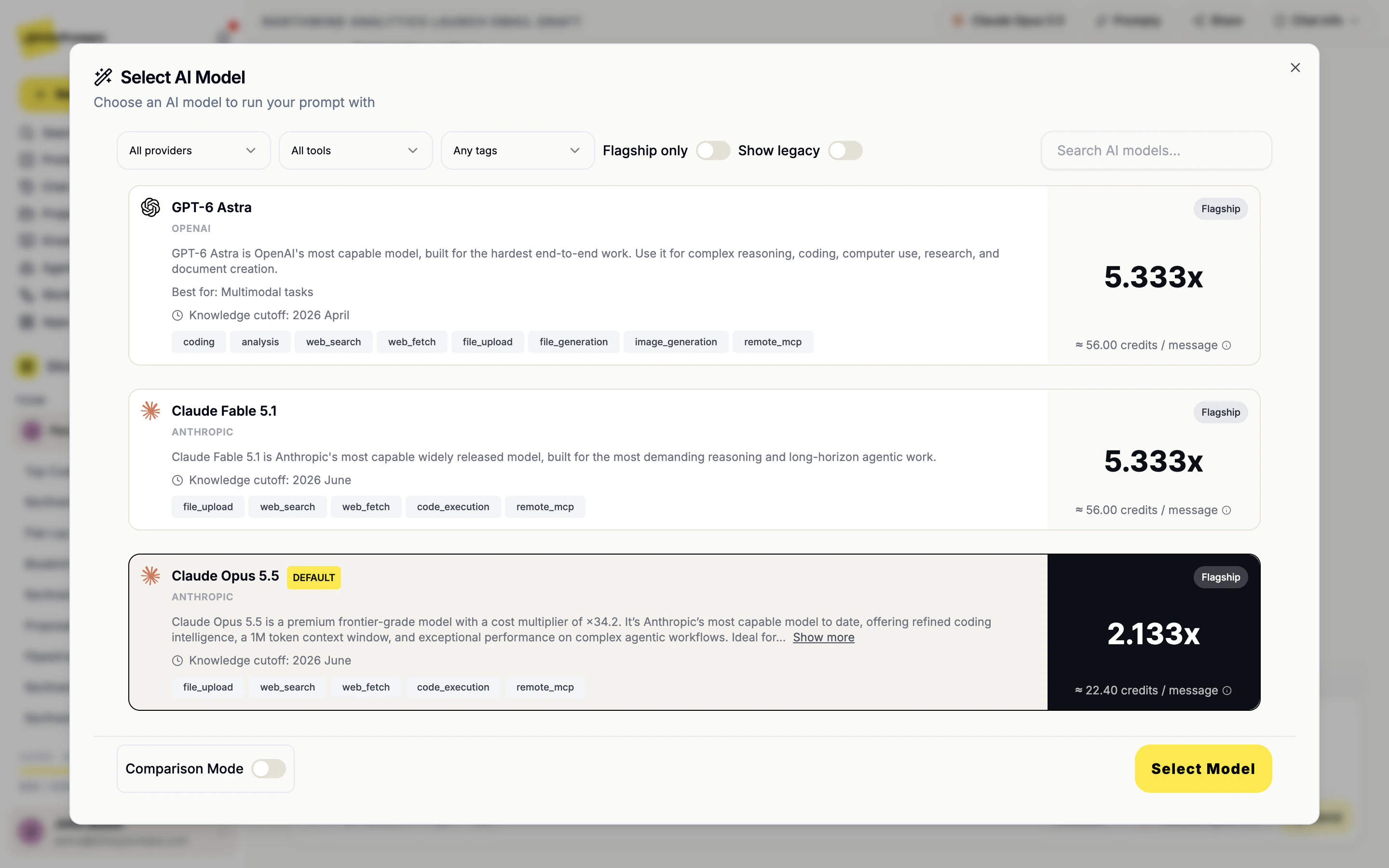
Open Compare Models from Apps, or flip Comparison Mode on in the model selector of the chat you are already in. The selector shows every model with its maker, what it is good at, its knowledge cutoff and its credits per message - so you know what you are comparing before you send.
- Comparison Mode in the Select AI Model dialog
- Filter by provider, tools and tags
- Credits per message shown on every model card
Found the right model? Make it the default.
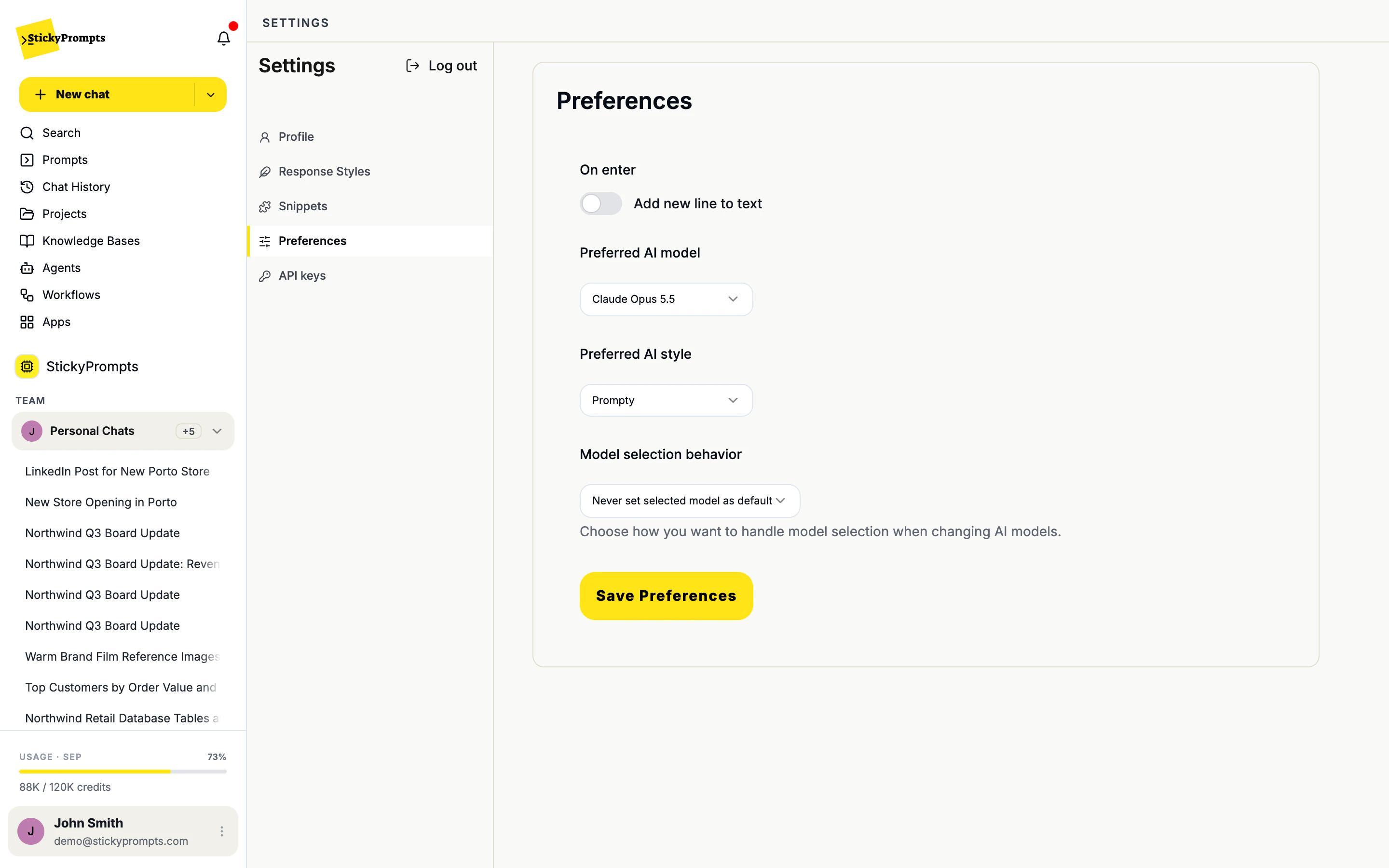
A comparison is only worth running if the answer sticks. Set the winner as your preferred AI model and every new chat starts with it. For a team, save the prompt to the library with that model attached.
- Preferred AI model in Settings
- Save the tested prompt, with its model, to the library
- Auto-select remains for quality, balance or speed
- Choosing the default for a team's support replies or sales emails
- High-stakes writing: read three drafts of the board summary, keep the best parts
- A new model appears in the selector - test it on your prompts, not a benchmark
- A fact matters - see whether the models agree before you rely on it
- Deciding whether a task needs a flagship or a fast model does it well
- Settling a team debate about which model writes better, with the answers on screen
What teams ask about comparing models.
How many models can I compare at once?
Between two and five. Three is a good place to start: enough to see a real spread, few enough to read every answer properly.
How do I start a comparison?
Open Compare Models from Apps, or switch on Comparison Mode at the bottom of the Select AI Model dialog in any chat. While it is on, the model button in the composer reads Comparing 3 models, or however many you picked.
Does every model use credits?
Yes. Each model answers on its own credits, exactly as it would in a separate chat, and the number is shown at the top of its column. Nothing is hidden in a total.
Who decides which answer is best?
You do. The summary line reports what can be measured - speed and credits. Whether an answer is accurate, on-brand and useful is a judgement, so the answers sit side by side for you to read.
Can I share the result?
Download DOCX exports every answer in one Word document. You can also share the chat itself with a colleague in the workspace, like any other conversation.
Once I have a winner, what then?
Make it yours. Set it as your preferred AI model in Settings, or save the prompt to the library with that model attached, so the next person starts from the answer you already tested.
Take next week's hardest prompt and ask three models.
Start free with a $5 trial balance. Read the answers side by side, then keep the one that earns it.